
Uptime Kuma: Monitor Websites, Alert via Telegram
Learn how to self-host Uptime Kuma with Docker and get instant Telegram alerts when any of your websites go down. No recurring fees, full control.
The Wake-Up Call I Did Not Expect
It was a Tuesday afternoon. A client sent a message asking why their website had been down since that morning. I had no idea. I checked, and sure enough the server was unresponsive. The site had been down for over four hours and I only found out because of a client complaint.
That day I decided I would never let that happen again. I had been running more than a dozen web projects at the time. Some were client sites, some were personal tools, some were small services I built for fun. None of them had proper monitoring. I was relying on luck and client feedback, which is not a strategy.
I needed something that would check every project automatically, retry before panicking, and send me a message on Telegram the moment something looked wrong.
Why Scripts Are Not Enough
My first instinct was to write a Python script. A loop, a requests.get(), and a Telegram bot call. Simple. But scripts have problems.
They do not retry. One network blip fires an alert. They go down when your server restarts and nobody notices. They have no history. When you wake up to an alert at 2 AM, you have no way to know how long the site was actually down.
A dedicated monitoring tool solves all of this. It handles retries, keeps history, shows uptime percentages, and runs as a persistent service. The clear choice for self-hosted monitoring in 2026 is Uptime Kuma.
What Is Uptime Kuma
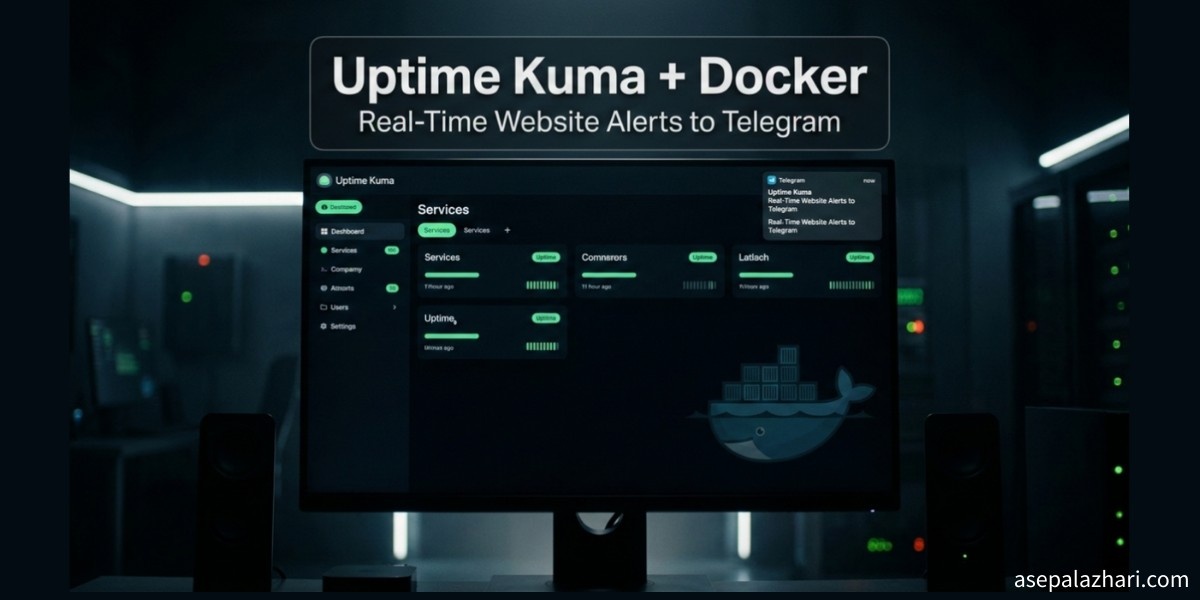
Uptime Kuma is an open-source, self-hosted monitoring tool built with Node.js and Vue.js. It runs in a Docker container, has a clean modern dashboard, and supports dozens of notification channels including Telegram natively.
It checks your sites at set intervals, retries on failure, tracks SSL expiry, and only sends an alert after a configurable number of consecutive failures. This alone eliminates most false alarms.
Installing Uptime Kuma with Docker
You do not need Docker Compose for a basic setup. One command is enough.
docker run -d \
  --name uptime-kuma \
  --restart always \
  -p 3001:3001 \
  -v uptime-kuma-data:/app/data \
  louislam/uptime-kuma:1
Break this down. The -d flag runs it in the background. The --restart always flag means the container comes back automatically after a server reboot. The -p 3001:3001 flag exposes the dashboard. The -v flag creates a named volume so your data survives container updates or restarts.
After 10 to 30 seconds, open your browser at http://localhost:3001 or http://YOUR_SERVER_IP:3001.
First Login and Admin Account
The first time you open the dashboard, Uptime Kuma shows a setup page. There is no default password. You create the admin account right there. Pick a username, set a strong password, and click Create. You will land on the main dashboard immediately.
To enable Two-Factor Authentication later, go to Settings then Security. It is worth doing if this dashboard is exposed to the internet.
Connecting Uptime Kuma to Telegram
Before adding monitors, set up your notification first. That way every monitor you add can reuse the same Telegram config.
- Go to Settings then Notifications.
- Click Setup Notification.
- Choose Telegram as the notification type.
- Paste your Bot Token. You get this by talking to @BotFather on Telegram.
- Paste your Chat ID. You can find this by messaging @userinfobot on Telegram.
- Click Test. If a message arrives on your Telegram, you are good. Click Save.
Now every monitor can use this notification channel.
Registering Your Web Projects
Click the plus button or “Add New Monitor” on the dashboard. The form is straightforward.
- Monitor Type: HTTP(s) for websites.
- Friendly Name: Something descriptive like “Client A — Main Site”.
- URL: The full address including https.
- Heartbeat Interval: 60 seconds for production sites, 300 seconds for dev tools.
- Retries: Set this to 2 or 3. This is important. Without retries, a single network hiccup triggers a Telegram message.
- Notification: Check the Telegram setup you just created.
Save the monitor and it starts checking immediately.
Keyword Monitoring
A 200 status code does not always mean the site is healthy. Sometimes a broken deploy returns 200 but shows a blank page or a database error. Uptime Kuma has a Keyword field. Enter a word that must appear on the page, like your brand name or “Login”. If the keyword is missing, Kuma treats it as a failure.
Also Read: Deploy a Smart Home Monitor: Fly.io to Self-Hosted
Managing Many Monitors
When you have dozens of sites, the dashboard gets crowded. Two features keep things organized.
Tags let you group monitors by client, environment, or project type. You can filter the dashboard by tag. Status Pages let you create a public-facing URL that shows a green or red indicator for each monitor. Useful for sharing uptime info with clients without giving them dashboard access.
For bulk import, go to Settings then Backup. Uptime Kuma stores everything in JSON. Export the file, add new monitor entries with a text editor, and import it back. This is faster than clicking through the form fifty times.
Handling Private IPs and Local Hostnames
Here is a situation I ran into. Kuma and one of my web services were on the same server. The server blocked inbound requests from public IPs. I added the service hostname and private IP to /etc/hosts on the server and it worked from the terminal. But Kuma still timed out.
The reason is that Docker containers have their own isolated network. Changes to the host’s /etc/hosts do not automatically apply inside a running container.
The cleanest fix for many private sites is using --network host. This makes the container share the host’s network stack, including /etc/hosts.
docker stop uptime-kuma
docker rm uptime-kuma

docker run -d \
  --name uptime-kuma \
  --restart always \
  --network host \
  -v uptime-kuma-data:/app/data \
  louislam/uptime-kuma:1
Note that you drop the -p 3001:3001 flag when using host networking. Kuma binds directly to port 3001 on the host. The dashboard is still at http://YOUR_SERVER_IP:3001.
For fewer private sites, use --add-host instead. It is more precise.
docker run -d \
  --name uptime-kuma \
  --restart always \
  -p 3001:3001 \
  --add-host=mysite.local:192.168.1.10 \
  -v uptime-kuma-data:/app/data \
  louislam/uptime-kuma:1
You can stack multiple --add-host flags for different hosts.
After Editing /etc/hosts
If you add a new entry to /etc/hosts while the container is already running in host network mode, the change is not picked up automatically. You need to restart the container.
docker restart uptime-kumaThis clears the DNS cache inside Node.js and forces a fresh read of the hosts file. To confirm it worked, run a test from inside the container.
docker exec -it uptime-kuma ping -c 3 mysite.localIf you see a private IP in the output, the container now resolves the hostname correctly.
Your Monitor Data Is Always Safe
A common worry when recreating containers is losing all your monitor history and settings. You will not lose anything as long as you always use the same named volume.
The volume uptime-kuma-data stores everything: monitor configs, uptime history, Telegram settings, and user accounts. When you delete and recreate the container, the volume stays. When you attach it again with -v uptime-kuma-data:/app/data, all your data comes back.
Think of the container as the software and the volume as the hard drive. Formatting the OS does not wipe a separate hard drive.
Also Read: Kubernetes Logging Done Right: Fluent Bit to Elasticsearch
Best Practices Summary
| Practice | Why It Matters |
|---|---|
| Set retries to 2 or 3 | Avoids false alarms from short network blips |
| Use keyword monitoring | Catches broken deployments that still return 200 |
| Different intervals by importance | Production every 60 seconds, dev tools every 5 minutes |
| Host Kuma on a separate server | If the server goes down, it should not take the monitor with it |
| Always use a named volume | Data survives container updates and recreations |
| Restart after /etc/hosts changes | Forces DNS resolution to pick up new entries |
You Will Sleep Better
Running a dozen web projects without monitoring is the kind of thing that seems fine until it is not. One quiet Sunday afternoon your client site goes down and stays down for six hours before anyone notices.
Uptime Kuma with Docker and Telegram takes about twenty minutes to set up. After that it runs itself, checks every site on its own schedule, retries before alarming you, and sends a message the moment something is actually wrong. And another message when it comes back up.
Set it up once. Let it do its job. Sleep better.