

Fix GlobalProtect Failed to Verify Certificate on macOS
GlobalProtect throwing Failed to verify certificate on some Macs but not others, while Windows is fine? Here is the real root cause and the permanent fix.

The Day My VPN Stopped Trusting Itself
My GlobalProtect VPN connected without a problem from my home office. A few hours later I sat down at a different desk, opened GlobalProtect, clicked Connect, and got hit with this:
Connection Failed
Failed to verify certificate
Portal: vpn.yourcompany.com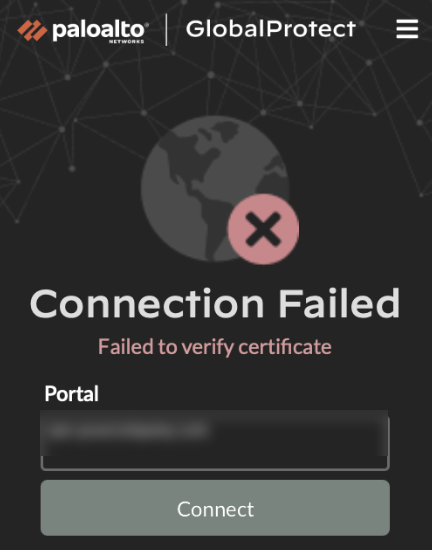
The exact GlobalProtect error that sent me down this rabbit hole. The portal field is blurred, but the message is the same one you are probably staring at right now.
Same laptop. Same VPN client. Same company portal. Ten minutes earlier it worked fine. Now it did not. I clicked Connect again. Same error. I restarted GlobalProtect. Same error. I rebooted my Mac. Still the same error.
Then I switched my Wi-Fi to my phone’s hotspot, clicked Connect, and it worked on the first try.
That one detail told me this was never really about a certificate. A broken certificate fails everywhere, every time. This failed on specific networks and worked fine on others. To make it even stranger, my coworkers on Windows laptops, sitting at the same desk, on the same Wi-Fi, connected without any issue at all.
If you have seen “Failed to verify certificate” from GlobalProtect on macOS, and it only happens on some networks, some Macs, or some days, this article is for you. I spent a full investigation chasing this down, and the actual fix has almost nothing to do with certificates. It is DNS. Here is exactly what was happening and how I fixed it for good.
The Error That Made No Sense
Before touching any logs, I mapped out the pattern I was seeing over a couple of weeks.
| Condition | Result |
|---|---|
| Certain office Wi-Fi networks | Always fails with “Failed to verify certificate” |
| Switch to phone hotspot | Connects on the first try |
| Flush DNS cache and restart mDNSResponder | Sometimes helps, sometimes does nothing |
| Append a CA certificate to GlobalProtect’s cert store | Inconsistent, error comes back after a restart |
| Same Wi-Fi network, Windows laptop | Always connects fine |
I already had a few shell aliases from a previous attempt at fixing this, things like flushing DNS and patching GlobalProtect’s certificate file. None of them were reliable. Some days they helped, some days they did nothing, and the error always seemed to come back eventually. That inconsistency was actually the clue. A real, permanent fix should behave the same way every time. Mine did not, which meant I was treating a symptom, not the disease.
Why “Certificate Error” Is Usually a Lie
Checking DNS First
The first thing I checked was whether my Mac was even resolving the VPN portal hostname to the right address.
dig vpn.yourcompany.com +shortOn a working network, this returned the portal’s real public IP, something like 203.0.113.10. On a failing network, it returned a completely different address. Just to confirm what the correct answer should be, I queried a public resolver directly instead of using whatever DNS my router handed me.
dig @1.1.1.1 vpn.yourcompany.com +shortThis always returned 203.0.113.10, no matter which network I was on. The system resolver and the public resolver disagreed, and only on the networks where GlobalProtect failed.
Checking the TLS Chain
Next I checked whether the certificate chain itself was actually valid by talking to the server directly with OpenSSL.
openssl s_client -connect 203.0.113.10:443 -servername vpn.yourcompany.com -legacy_renegotiationThe output ended with Verify return code: 0 (ok), and the certificate chain showed the expected issuer, in my case a DigiCert Global G2 TLS RSA SHA256 2020 CA1 certificate rooted at DigiCert Global Root G2. The real server, at the real IP, presented a perfectly valid certificate.
Also Read: Why Your SSL Certificate Is Only 6 Months Now (2026)
So the certificate at the correct IP was fine. The DNS answer on the failing network was wrong. Two completely separate facts, and together they pointed straight at the real problem.
The Real Root Cause: DNS Manipulation by Wi-Fi Routers
Here is the chain of events that produces “Failed to verify certificate” even though the actual problem is DNS.
- You connect to a Wi-Fi network whose router hands out its own DNS server through DHCP.
- That DNS server resolves
vpn.yourcompany.comto an IP address that is not your company’s real VPN gateway. - GlobalProtect connects to that wrong IP and asks for its certificate.
- The wrong server presents a certificate that does not match what GlobalProtect expects in its trusted chain.
- GlobalProtect cannot verify that certificate, so it reports the only error it has a message for: “Failed to verify certificate.”
The error is about a certificate because that is the step where the connection finally breaks. The root cause is two steps earlier, in DNS.
I confirmed this by checking the DNS settings on every network interface on my Mac at once.
networksetup -listallnetworkservices | while read svc; do
  echo "$svc: $(networksetup -getdnsservers "$svc")"
done
Every single interface, Wi-Fi, a USB Ethernet adapter, and my iPhone in USB tethering mode, came back with “There aren’t any DNS Servers set.” Every interface was relying entirely on whatever DNS the connected network handed it. On a network with a router that resolves things normally, everything works. On a network whose router rewrites or hijacks that one hostname, GlobalProtect connects to the wrong place and fails with a certificate error.
This also explains why switching to a phone hotspot fixed it instantly. The hotspot’s DNS resolved the portal correctly, so GlobalProtect connected to the right IP and got the right certificate.
As for why my Windows-using coworkers never saw this on the same Wi-Fi, I cannot give you a definitive answer from the Windows side, but here is the practical difference I could observe. My Mac regularly had four or five network services active at the same time, Wi-Fi, two USB Ethernet adapters, a Thunderbolt bridge, and an iPhone in tethering mode, each picking up its own DNS configuration from DHCP. The Windows laptops next to me were on a single Wi-Fi connection and nothing else. The more network interfaces you have active and competing for DNS resolution, the more chances one of them hands you a bad answer for one hostname. If your setup, Mac or otherwise, only ever uses one interface at a time, you may simply never hit this particular failure mode.
The Second Problem: GlobalProtect Keeps Resetting Its Own Certificate File
While digging through GlobalProtect’s files, I found a second issue layered on top of the DNS one. GlobalProtect keeps a small certificate store file:
/Library/Application Support/PaloAltoNetworks/GlobalProtect/tca.cerI had several backup copies of this file from earlier fix attempts, and every single one was exactly 1208 bytes.
-rw-------  1 root  admin  1208 Jun  6 08:34  tca.cer
-rw-------  1 root  admin  1208 May 25 08:15  tca.cer.bak
-rw-------  1 root  admin  1208 May 25 12:30  tca.cer.bak2
-rw-------  1 root  admin  1208 May 25 12:34  tca.cer.bak3
That identical size was the giveaway. Every time GlobalProtect’s background service restarts, or the Mac reboots, it writes this file back to its factory default. My earlier fix attempt had tried to append an extra certificate chain to this file using >>. That approach had two problems. First, appending a PEM formatted certificate to a DER formatted file produces a file that is neither format cleanly, which some tools handle and others do not. Second, and more importantly, GlobalProtect overwrites the file again the next time its service restarts, silently undoing the fix. No wonder the error kept coming back at random.
The Permanent Fix
This is the part that actually mattered. Five changes, ranked from “fixes it immediately on any network” to “never have to think about this again.”
Fix 1: Pin the VPN Portal in /etc/hosts
This single line solved the original problem completely. The /etc/hosts file is checked before any DNS resolver, including whatever DNS your router decided to hand you.
sudo bash -c 'echo -e "\n# Pin GlobalProtect VPN portal to prevent DNS hijacking\n203.0.113.10 vpn.yourcompany.com" >> /etc/hosts'Replace 203.0.113.10 with your company’s actual VPN gateway IP, the same one you confirmed with dig @1.1.1.1 earlier, and replace vpn.yourcompany.com with your real portal hostname. From this point on, no matter what DNS a Wi-Fi network tries to hand your Mac, this one hostname always resolves correctly.
One caveat worth knowing. If your company’s VPN gateway sits behind a load balancer or traffic manager that can change its IP over time, you may need to update this entry occasionally. In practice this happens rarely, and /etc/hosts is still the strongest fix available because it works identically on every network you will ever connect to.
Fix 2: Fix DNS Aliases for Every Network Interface
My old vpndns alias only set DNS servers on the Wi-Fi interface. That was useless the moment I was connected through a USB Ethernet adapter or tethering over my iPhone. The fix is to loop over every interface that matters.
alias vpndns='for _svc in "Wi-Fi" "USB 10/100 LAN" "USB 10/100/1000 LAN" "iPhone USB"; do
  networksetup -setdnsservers "$_svc" 1.1.1.1 8.8.8.8 2>/dev/null
done && sudo dscacheutil -flushcache && sudo killall -HUP mDNSResponder'

alias vpndnsreset='for _svc in "Wi-Fi" "USB 10/100 LAN" "USB 10/100/1000 LAN" "iPhone USB"; do
  networksetup -setdnsservers "$_svc" "Empty" 2>/dev/null
done && sudo dscacheutil -flushcache && sudo killall -HUP mDNSResponder'
Run networksetup -listallnetworkservices once to get the exact interface names on your Mac, then update the list in both aliases. vpndns forces every interface to use a known good resolver, and vpndnsreset puts everything back to automatic DHCP DNS when you no longer need the override.
Fix 3: One Command to Diagnose Everything
I built a single diagnostic alias that checks every part of the chain at once, so I never have to guess again.
alias vpncheck='
  echo "=== Portal DNS (should match 203.0.113.10) ===" && dig vpn.yourcompany.com +short
  echo "=== DNS via 1.1.1.1 (ground truth) ===" && dig @1.1.1.1 vpn.yourcompany.com +short
  echo "=== TLS cert check ===" && echo | openssl s_client -connect vpn.yourcompany.com:443 \
    -servername vpn.yourcompany.com -legacy_renegotiation 2>&1 \
    | grep -E "subject|issuer|Verify return code|error" | head -6
  echo "=== OCSP reachable ===" && curl -s --max-time 3 -o /dev/null -w "ocsp.digicert.com: HTTP %{http_code}\n" http://ocsp.digicert.com
  echo "=== Active network interface ===" && route get 1.1.1.1 2>/dev/null | grep interface
'
Here is how to read the output.
| Output | Meaning | What to do |
|---|---|---|
| Portal DNS matches the 1.1.1.1 result | DNS is resolving correctly | Connect normally |
| Portal DNS differs from the 1.1.1.1 result | The current network is rewriting DNS | Run vpndns, or rely on the /etc/hosts pin |
TLS shows Verify return code: 0 (ok) | Certificate chain is valid | No action needed |
| TLS shows an error or no peer certificate | GlobalProtect’s cert store is incomplete | Run gpfix |
| OCSP returns HTTP 200 | Revocation checks can reach the internet | No action needed |
| OCSP times out | This network blocks OCSP | Switch networks if possible |
Fix 4: Rewrite gpfix to Replace, Not Append
My old gpfix alias appended a PEM certificate chain to the existing tca.cer file with >>. That created a mixed format file, and as we covered earlier, GlobalProtect wipes the file on every service restart anyway. The new version downloads a fresh intermediate certificate, replaces tca.cer entirely, then appends the chain, and restarts the GlobalProtect background services so the change takes effect immediately.
alias gpfix='
  echo "Downloading CA intermediate certificate..."
  if curl -s --max-time 10 "https://your-ca-cert-url/intermediate.crt" -o /tmp/_int.crt 2>/dev/null && [ -s /tmp/_int.crt ]; then
    sudo cp "/Library/Application Support/PaloAltoNetworks/GlobalProtect/tca.cer" \
      "/Library/Application Support/PaloAltoNetworks/GlobalProtect/tca.cer.bak-$(date +%Y%m%d)" 2>/dev/null
    sudo bash -c "cp /tmp/_int.crt \"/Library/Application Support/PaloAltoNetworks/GlobalProtect/tca.cer\" \
      && cat ~/Documents/ca-chain.pem >> \"/Library/Application Support/PaloAltoNetworks/GlobalProtect/tca.cer\""
    echo "tca.cer updated"
  else
    echo "Download failed, falling back to local chain only"
    sudo bash -c "cat ~/Documents/ca-chain.pem > \"/Library/Application Support/PaloAltoNetworks/GlobalProtect/tca.cer\""
  fi
  launchctl bootout gui/$(id -u) /Library/LaunchAgents/com.paloaltonetworks.gp.pangpa.plist 2>/dev/null
  launchctl bootout gui/$(id -u) /Library/LaunchAgents/com.paloaltonetworks.gp.pangps.plist 2>/dev/null
  sleep 2
  launchctl bootstrap gui/$(id -u) /Library/LaunchAgents/com.paloaltonetworks.gp.pangps.plist
  launchctl bootstrap gui/$(id -u) /Library/LaunchAgents/com.paloaltonetworks.gp.pangpa.plist
  echo "Done. Try connecting GlobalProtect now."
'
Swap the certificate URL and chain file path for whatever matches your own CA. If your portal’s certificate chains up through DigiCert, like mine does, DigiCert publishes its intermediate certificates publicly, so you can download the matching one directly.
Also Read: Why I Ditched Termius for WebSSH: Best SSH Client for Apple Ecosystem
Fix 5 (Optional): A LaunchDaemon That Heals Itself
Fix 4 works, until your Mac restarts and GlobalProtect rewrites tca.cer back to its 1208 byte default again. The cleanest long term answer is a LaunchDaemon that watches the file and re-applies the fix automatically, every single time it changes.
First, the watcher script, saved as /usr/local/bin/gp-certfix.sh:
#!/bin/sh
TCACER="/Library/Application Support/PaloAltoNetworks/GlobalProtect/tca.cer"
CHAINPEM="/path/to/ca-chain.pem"
INTCRT="/tmp/gp-int.crt"

if ! grep -q "BEGIN CERTIFICATE" "$TCACER" 2>/dev/null; then
    if [ ! -s "$INTCRT" ]; then
        curl -s --max-time 10 "https://your-ca-cert-url/intermediate.crt" -o "$INTCRT" 2>/dev/null
    fi
    if [ -s "$INTCRT" ]; then
        cp "$INTCRT" "$TCACER"
    fi
    if [ -f "$CHAINPEM" ]; then
        cat "$CHAINPEM" >> "$TCACER"
    fi
fi
Then the LaunchDaemon definition, saved as /Library/LaunchDaemons/com.user.gp-certfix.plist:
<?xml version="1.0" encoding="UTF-8"?>
<!DOCTYPE plist PUBLIC "-//Apple//DTD PLIST 1.0//EN" "http://www.apple.com/DTDs/PropertyList-1.0.dtd">
<plist version="1.0">
<dict>
    <key>Label</key>
    <string>com.user.gp-certfix</string>
    <key>ProgramArguments</key>
    <array>
        <string>/usr/local/bin/gp-certfix.sh</string>
    </array>
    <key>WatchPaths</key>
    <array>
        <string>/Library/Application Support/PaloAltoNetworks/GlobalProtect/tca.cer</string>
    </array>
    <key>RunAtLoad</key>
    <true/>
</dict>
</plist>
Install both with three commands:
sudo cp gp-certfix.sh /usr/local/bin/gp-certfix.sh
sudo chmod 755 /usr/local/bin/gp-certfix.sh
sudo cp com.user.gp-certfix.plist /Library/LaunchDaemons/com.user.gp-certfix.plist
sudo launchctl bootstrap system /Library/LaunchDaemons/com.user.gp-certfix.plist
From now on, every time GlobalProtect resets tca.cer, macOS notices the change through WatchPaths and runs the script within seconds, putting the proper certificate chain back before you even click Connect.
Results: Connected on Every Network
After adding the /etc/hosts pin alone, every network that previously failed with “Failed to verify certificate” started connecting normally. The DNS aliases and the rewritten gpfix closed the remaining edge cases, the ones involving USB tethering and a stale certificate store. The LaunchDaemon means I have not had to manually run any of these fixes since, including after full restarts.
The issue never affected every Mac, and it never affected Windows machines on the same networks at all. It only showed up on Macs that regularly bounce between multiple network interfaces and connect to Wi-Fi networks with routers that quietly rewrite DNS for specific hostnames. If that sounds like your setup, the fixes above should get you there too.
Quick Reference Table
| Symptom | Likely Cause | Fix |
|---|---|---|
| Fails on specific Wi-Fi, works on phone hotspot | DNS hijacking by that router | Fix 1, /etc/hosts pin |
| Fails when connected via USB Ethernet or phone tethering | DNS on that interface was never overridden | Fix 2, interface wide vpndns |
vpncheck shows a TLS error or no peer certificate | tca.cer is missing the CA chain | Fix 4, rewritten gpfix |
| Fix 4 works, then breaks again after a reboot | GlobalProtect reset tca.cer on startup | Fix 5, self healing LaunchDaemon |
| Windows connects fine, only the Mac fails | Mac has more active network interfaces competing for DNS | Fix 1 plus Fix 2 |
Final Thoughts
The single most useful lesson from this whole investigation is that “Failed to verify certificate” is often the last domino in a chain that started somewhere completely different. GlobalProtect reports the step where it gave up, not the step where things actually went wrong. Before you start replacing certificate files or reinstalling the VPN client, run a plain dig against your portal hostname through your normal resolver and through a public one like 1.1.1.1, and compare the answers. If they disagree, you have found your real problem, and a single line in /etc/hosts might be all you need.