
Remove a Ghost Git Repo from VS Code Source Control
Seeing a mystery folder with 10,000+ changes in VS Code Source Control? You probably have a ghost Git repo. Here's how to kill it for good in three quick steps.
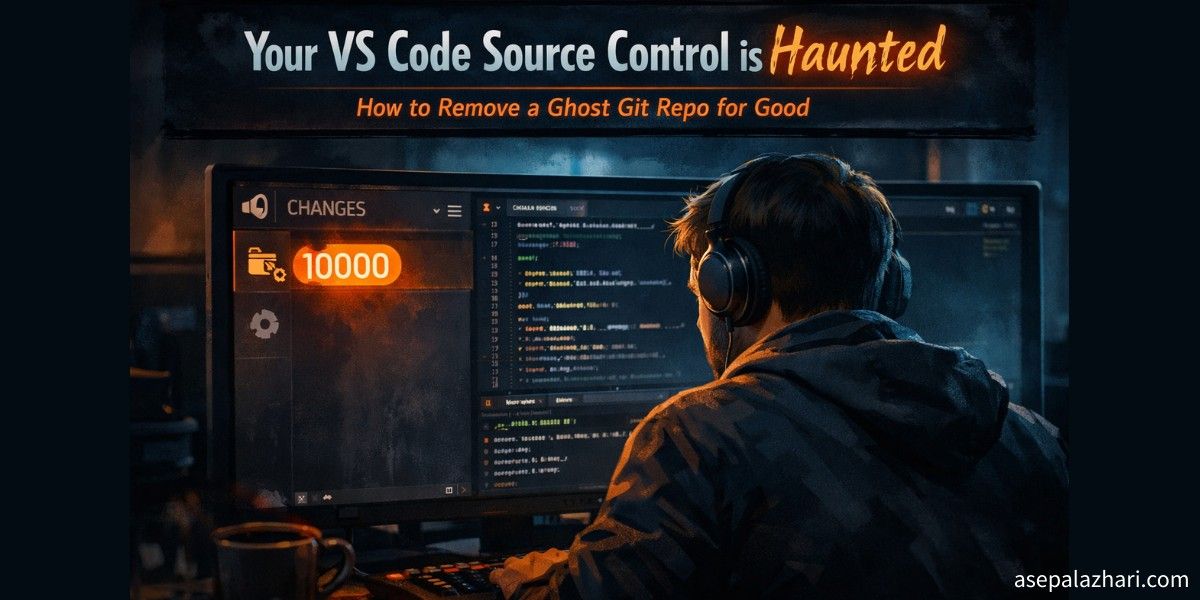
You open VS Code. Everything looks normal. Then you glance at the Source Control panel. A folder you don’t recognize sits there. Badge glowing. 10,000+ changes. You never asked for this.
You check the Explorer. That folder isn’t even open in your workspace. Yet Source Control insists it’s there. Watching. Tracking. Showing you thousands of changes that mean nothing.
This is a ghost Git repo. And it’s easier to kill than you think.
What Actually Happened
The culprit is almost always an accidental git init in a parent directory.
Here’s a typical scenario. You create a project folder. Something like /home/user/projects/my-app. Inside it, you scaffold your frontend and backend directories. You install Next.js in frontend and set up your backend. Both get their own proper Git repos.
But somewhere along the way, git init ran one level too high. Maybe a setup script triggered it. Maybe you typed it manually without thinking. Maybe an IDE extension did it automatically.
Now /home/user/projects/ is a Git repository. It sees everything inside it as untracked files. Your node_modules, build artifacts, downloaded packages, all of it. VS Code detects this parent repo and shows it in Source Control as a separate entry. That’s your ghost.
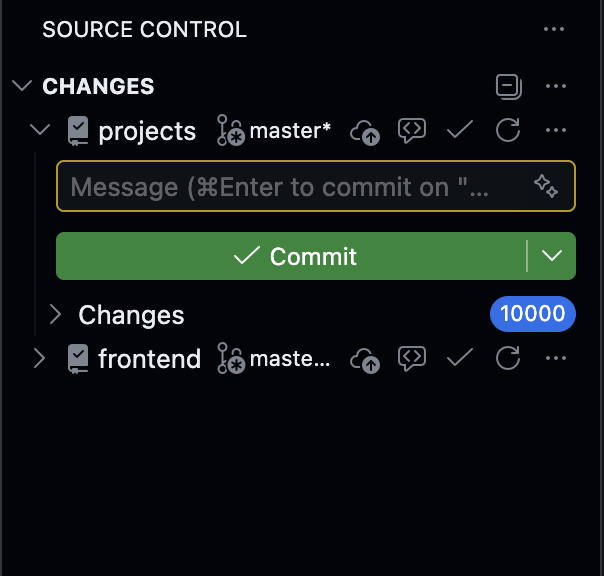
The 10,000 cap is VS Code protecting itself. The real number could be far higher.
Three Ways to Remove It
Pick the fix that matches your situation.
Close Repository (Quickest UI Fix)
This hides the ghost from VS Code without touching any files. Good for a fast cleanup.
Go to the Source Control tab. Find the entry showing thousands of changes. Right-click directly on the repository name at the top of that section. Select Close Repository from the menu.
VS Code removes it from the panel immediately. It remembers this choice for the current workspace. The .git folder still exists on disk, but VS Code stops showing it.
Use this when you need the noise gone right now and will deal with the root cause later.
Remove Folder from Workspace
Works if the parent folder is somehow open in your Explorer sidebar.
Switch to the Explorer tab. Look for the offending folder. Right-click it. Select Remove Folder from Workspace.
This removes it from VS Code’s awareness for this session. It doesn’t delete your files. The folder and all its contents stay safe on disk.
Delete the .git Folder (Permanent Fix)
This is the real fix. Remove the accidental Git tracking entirely.
First, locate the hidden .git folder. Then delete it. The repository ceases to exist. VS Code stops seeing it. Forever.
Open the VS Code terminal. Navigate up from your current project to find the offending parent:
cd ..
ls -la
On macOS and Linux:
rm -rf .gitOn Windows PowerShell:
Remove-Item -Recurse -Force .gitThis only deletes the Git metadata. Your actual project files stay intact. The frontend and backend repos inside that folder are unaffected. They have their own .git folders and remain independent.
Only do this if the parent folder was never meant to be a real repository. If it contains legitimate commit history you care about, stop. Back up first.
How to Confirm Which Folder Has the Hidden .git
Not sure where the ghost lives? Hunt it down from the terminal.
Open the VS Code terminal. Start from inside your project and walk upward:
# From inside your project
cd ..
ls -la | grep "^d.*\.git"

# If nothing shows, go up another level
cd ..
ls -la | grep "^d.*\.git"
On macOS and Linux you can also search from your home directory:
find ~ -maxdepth 4 -name ".git" -type d 2>/dev/nullThis scans up to four levels deep under your home folder. It lists every .git directory it finds. The unexpected ones are your ghosts.
On Windows, use PowerShell:
Get-ChildItem -Path $HOME -Recurse -Depth 4 -Filter ".git" -Force -ErrorAction SilentlyContinue | Select-Object FullNameOnce you spot the unexpected .git path, you know exactly what to delete.
Also read: Stop Git Asking for Credentials in VS Code to solve another common Git annoyance that kills developer flow.
Prevent It from Happening Again
The ghost is gone. Now make sure it never comes back.
Adjust git.autoRepositoryDetection
By default, VS Code aggressively scans for Git repos. It looks in parent directories and sibling folders. That’s how it catches the accidental ones too.
Open VS Code Settings. Press Ctrl+, on Windows and Linux, or Cmd+, on macOS. Search for git.autoRepositoryDetection.
Change the value from true to subFolders.
With subFolders, VS Code only looks inside folders that are already open in your workspace. It ignores parent directories entirely. No more surprise repos appearing from nowhere.
If you want even stricter control, set it to false. VS Code will only track repositories at the exact root of your open folders.
Add it directly to your settings.json for precision:
{
    "git.autoRepositoryDetection": "subFolders"
}
Use a .gitignore in Parent Directories
If a parent directory must stay as a Git repo for some reason, add a .gitignore that ignores everything inside child project folders. This prevents the 10,000 change flood.
Create a .gitignore in the parent directory:
# Ignore all child project files
frontend/
backend/
node_modules/
*.log
.DS_Store
This tells Git to stop tracking those paths. Source Control goes quiet. Your actual project repos inside remain untouched.
Also read: Fix VS Code Git Tree View Fast for another quick fix that makes working with multiple repos in VS Code much cleaner.
Conclusion
A ghost Git repo is almost always an accident. One stray git init in the wrong directory. VS Code does the rest by being helpful and detecting it automatically.
The permanent fix is simple. Find the .git folder that doesn’t belong. Delete it. Adjust git.autoRepositoryDetection to subFolders so VS Code stops hunting for repos in parent directories.
Your Source Control panel goes back to showing only what matters. No more 10,000 change badges haunting your workflow.